

Star Wars Zero Company can suffer from frame drops, stutters, and occasional freezes on PC, including systems with powerful graphics cards. The game is particularly demanding on the CPU, so simply dropping every graphics option to Low does not always fix inconsistent performance.
The best approach is to cap the frame rate, use the correct upscaler for your GPU, enable the available low-latency option, and reduce the settings that hit your CPU first. The settings below prioritize maximum FPS and stable frametimes without stripping away visual quality.
1. Best Star Wars Zero Company PC Settings
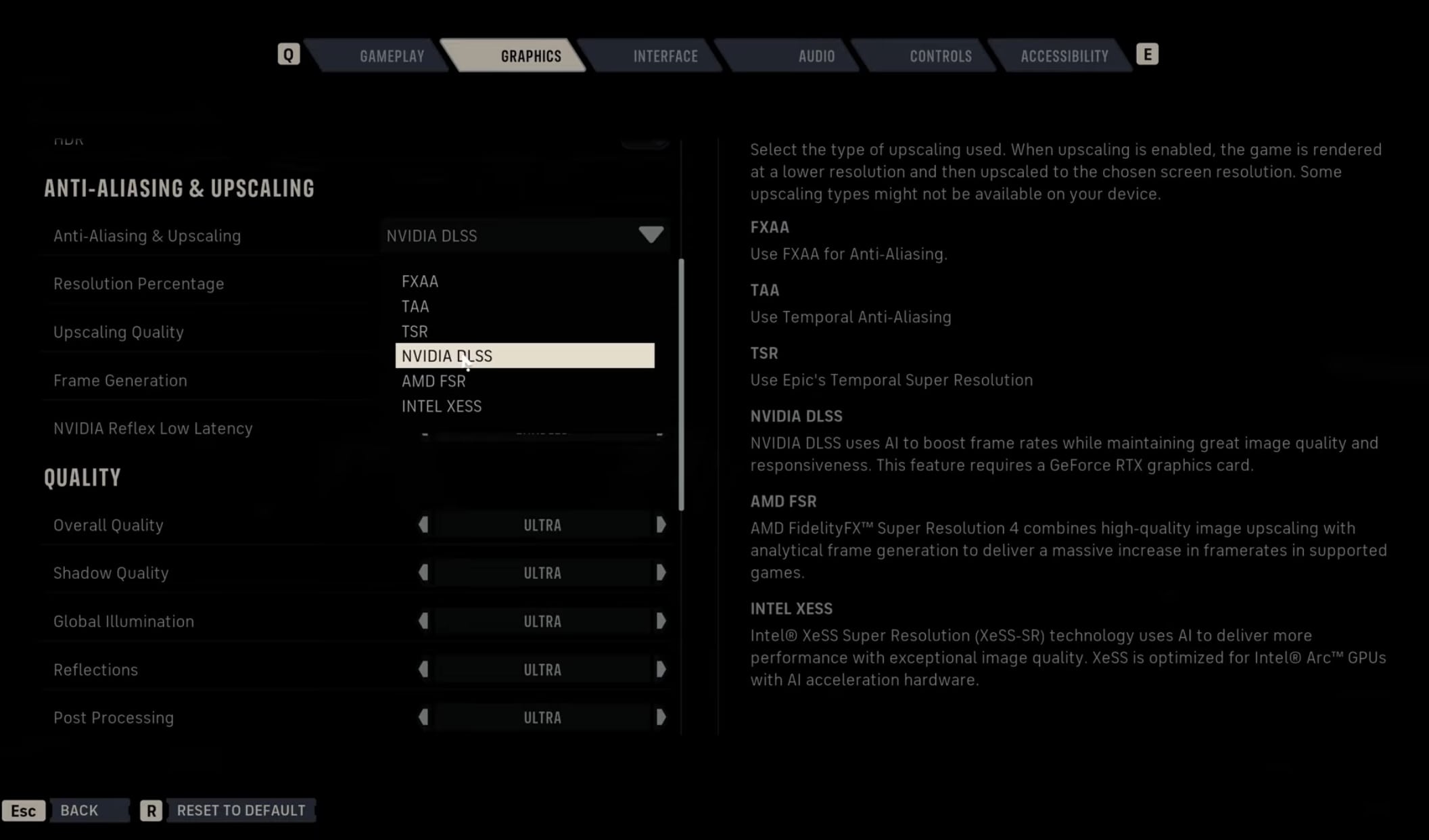
Upscaling Settings
Start with the following settings and then raise individual options if your PC has enough performance headroom. A 60 FPS cap is the safest starting point because inconsistent CPU performance can otherwise produce uneven frametimes even when the displayed FPS counter is higher.
| Graphics Setting | Best Setting |
|---|---|
| Windowing Mode | Fullscreen / Borderless Window |
| Resolution | Native Monitor Resolution |
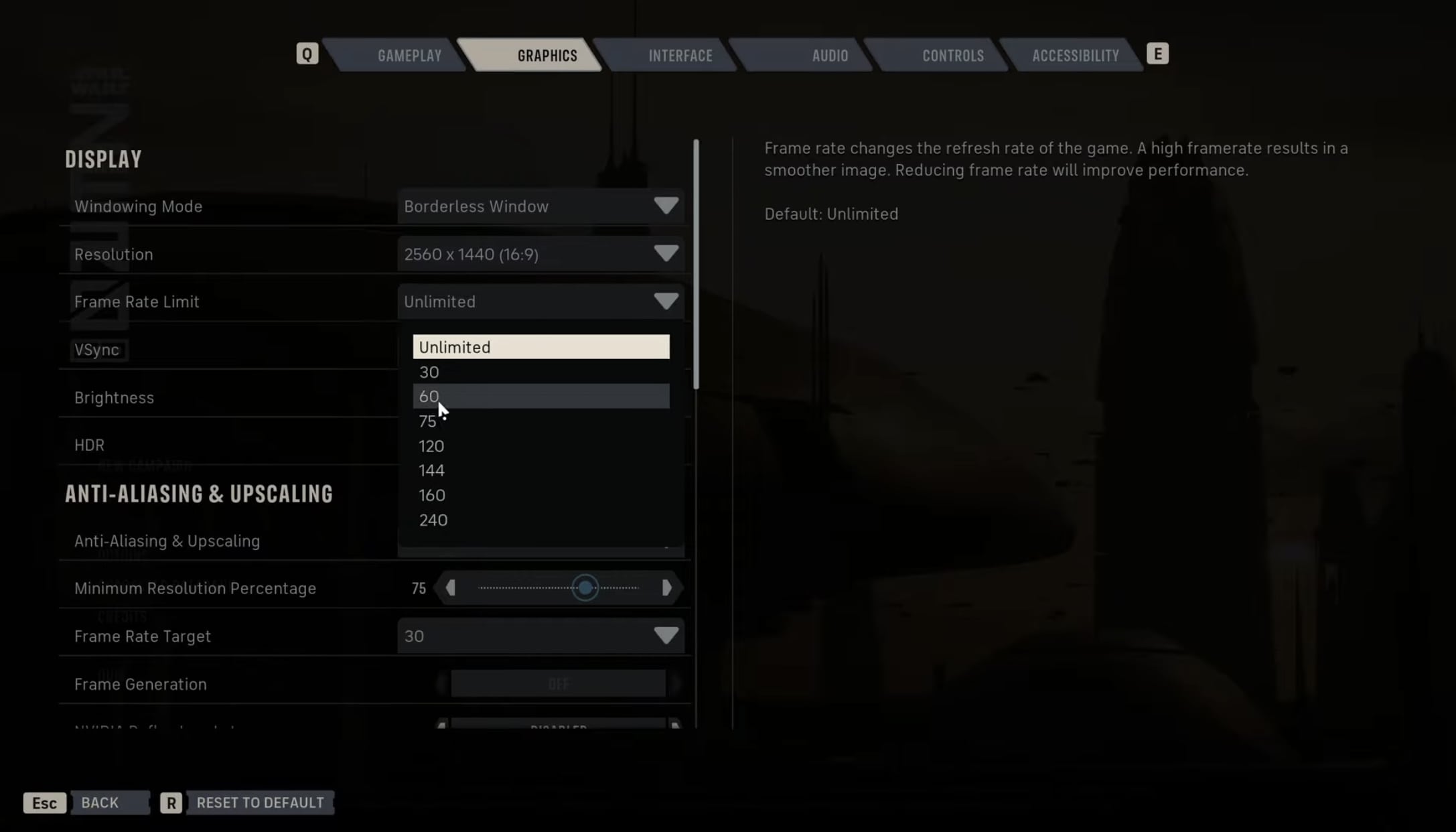
| Frame Rate Limit | 60 FPS |
| VSync | Off |
| Brightness | Default |
| HDR | Off |
| Anti-Aliasing & Upscaling | DLSS / FSR / XeSS |
| Minimum Resolution Target | Default |
| Upscaling Quality | Quality 1080p / Balanced 1440p / Performance 4K |
| Frame Rate Target | 60 FPS |
| Frame Generation | Off |
| Nvidia Reflex / AMD Anti-Lag / XeSS LL | On |
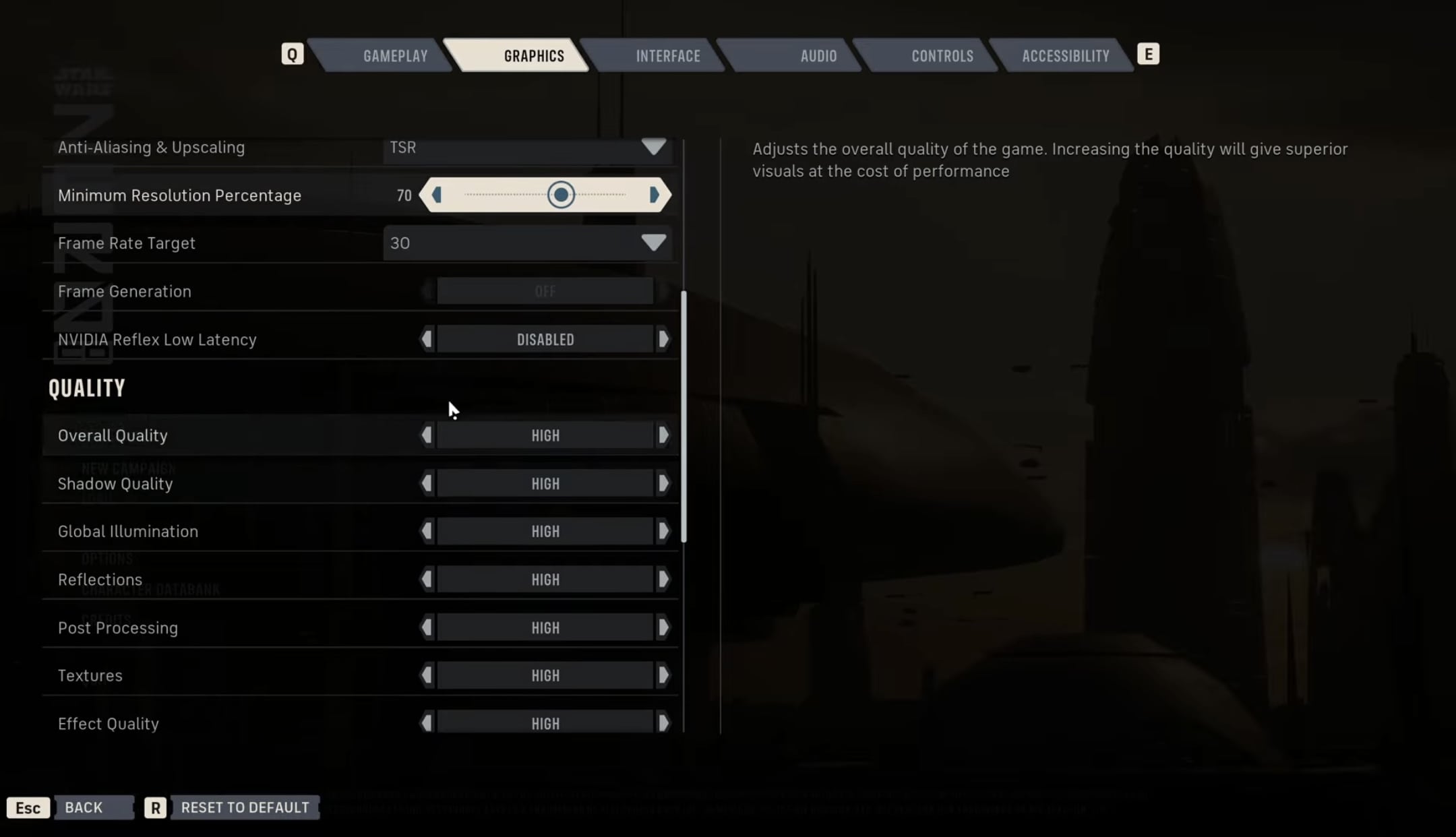
| Overall Quality | Custom |
| Shadow Quality | Low |
| Global Illumination | Low |
| Reflections | Low |
| Post Processing | Low |
| Textures | Medium |
| Effect Quality | Low |
| Shading Quality | Low |
| View Distance | Low |
| Hidden Objects Detail | Simplified |
| Environment Geometry Detail | On for newer GPUs / Off for older GPUs |
Windowing Mode and Frame Rate Limit
Display Settings
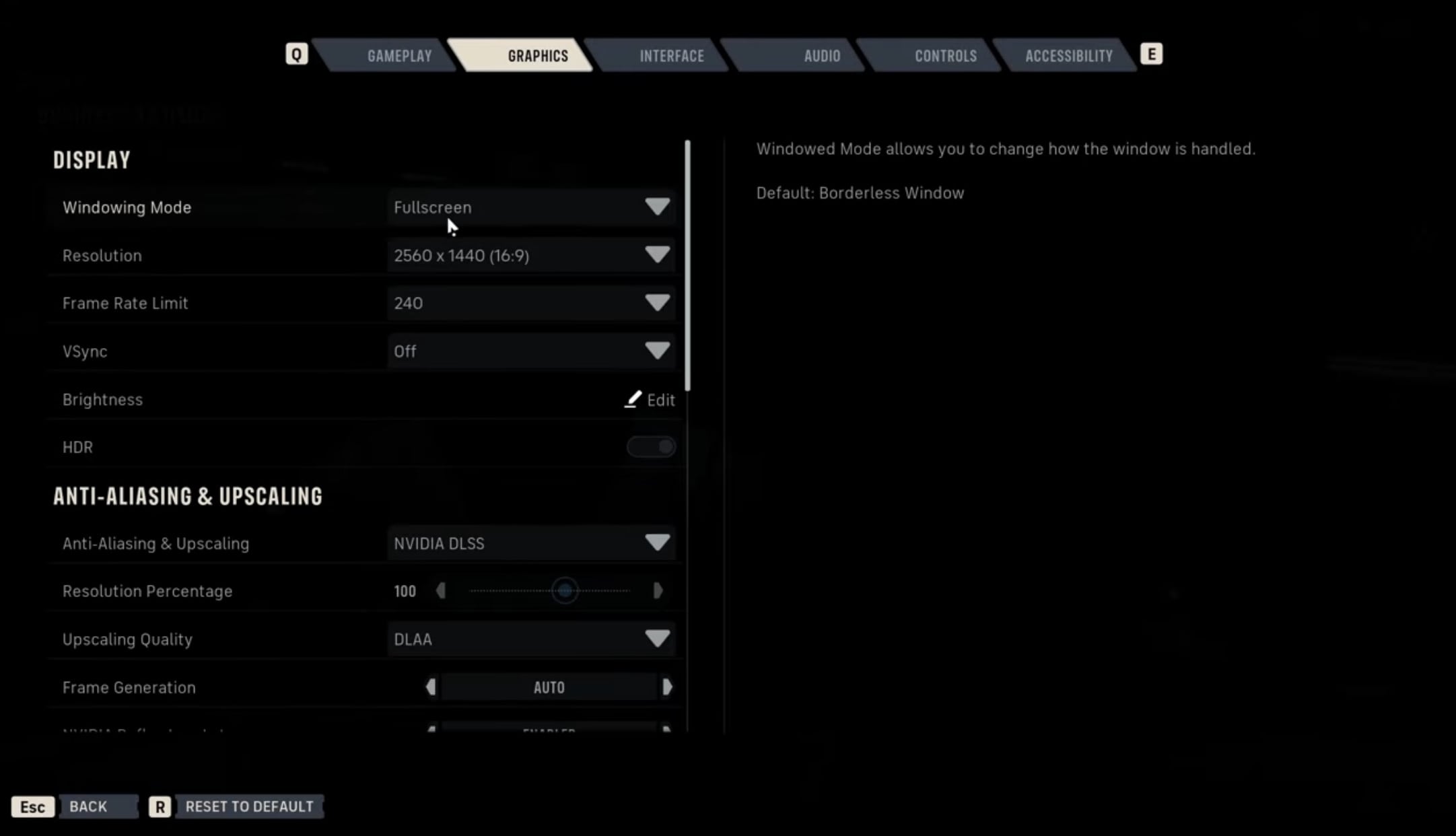
Use Fullscreen on a single-monitor setup when you rarely switch out of the game. If you regularly Alt-Tab or use multiple monitors, Borderless Window is more convenient and avoids the transition between fullscreen applications. Standard Windowed mode offers little reason to use it unless you specifically want the game running inside a smaller desktop window.
Set the Frame Rate Limit to 60 FPS first. Star Wars Zero Company is a turn-based tactics game, so maintaining smooth and consistent frame pacing matters more than pushing the counter as high as possible. If your PC holds 60 FPS without noticeable spikes, you can experiment with 75 FPS, 120 FPS, or a higher limit.
Best Upscaling Setting for Nvidia, AMD, and Intel GPUs
Anti Aliasing Settings
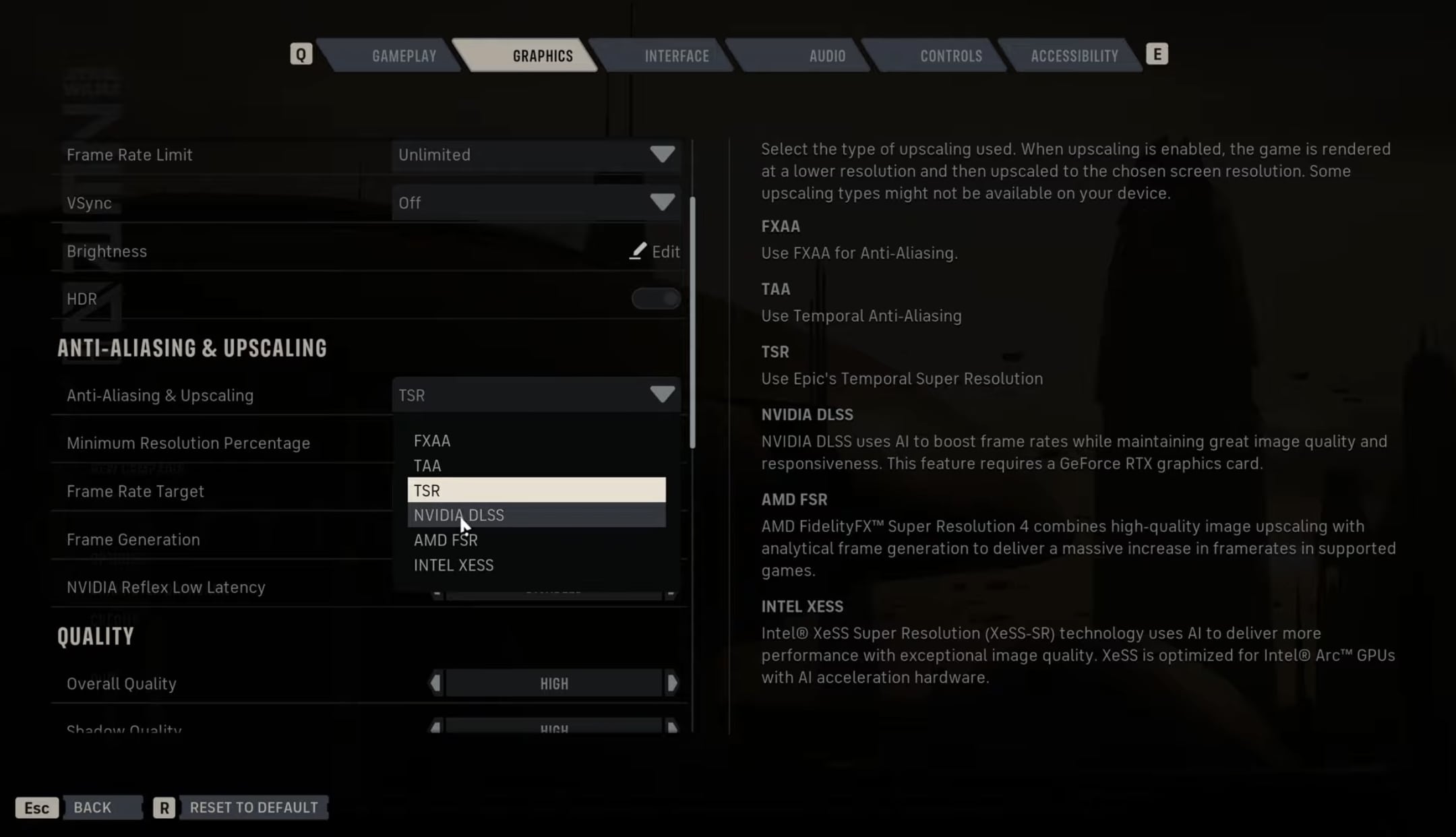
Upscaling is one of the most important settings for improving performance. Use DLSS on Nvidia GPUs, FSR on AMD GPUs, and XeSS on Intel GPUs. TSR is also available as an alternative, but the vendor-specific upscaler is the better starting point when your graphics card supports it.
- 1080p: Quality
- 1440p: Balanced
- 4K: Performance
These values preserve a reasonable image while reducing the internal rendering workload. Drop the upscaling quality another step only if your GPU is still struggling to reach your target frame rate.
Best Texture Quality Based on VRAM
Texture Quality primarily depends on available VRAM, so lowering it unnecessarily will not fix a CPU bottleneck. Medium is a safe general setting, but PCs with plenty of graphics memory can raise it without sacrificing much performance.
- 10 GB VRAM or more: Ultra can be used if VRAM usage remains within the card’s limit.
- 8 GB to 10 GB VRAM: Medium or High is the safer range.
- Less than 8 GB VRAM: Use Medium or Low if VRAM usage is approaching the limit.
Running a hardware monitoring overlay for one full mission is the easiest way to check this. If VRAM is nearly full when stutters appear, reduce Textures before making unnecessary cuts elsewhere.
2. Fix CPU, GPU, and VRAM Bottlenecks
Before dropping every setting to Low, run a performance monitor during a mission and identify which component is actually limiting the game. Star Wars Zero Company can remain CPU-bound even when paired with a powerful GPU, so reducing graphics-heavy options will not always eliminate mission-start or cutscene stutters.
- CPU-limited: Lower Hidden Objects Detail, Effect Quality, and View Distance first.
- GPU-limited: Lower Shadow Quality, Global Illumination, and Reflections first.
- VRAM-limited: Lower Textures and Shading Quality.
If your graphics card is sitting below full utilization while frame rates fall, focus on the CPU-heavy settings instead of continuing to reduce visual quality. If the GPU is consistently at or close to 100% usage, lowering shadows, lighting, reflections, or the upscaling quality level will have a much larger effect.
CPU Bottleneck and Mission Stutters
Frame Rate Settings
Star Wars Zero Company is particularly demanding on the processor. CPU usage can spike when a mission begins and during certain cutscenes while GPU utilization remains below its maximum, resulting in hitches that cannot be completely fixed by lowering GPU-focused settings.
This is also why a stable 60 FPS cap is preferable to chasing an unstable higher frame rate on many PCs. Once the CPU-heavy settings have been reduced and frametimes are stable, individual quality options can be raised again.
Intel Arc
If you are playing on an Intel Arc GPU, make sure Resizable BAR is enabled in your motherboard firmware. Resizable BAR can improve FPS performance in Star Wars Zero Company and may be disabled by default on some systems.
The exact BIOS or UEFI option varies between motherboard manufacturers, so check the documentation for your motherboard before changing it.
3. Star Wars Zero Company PC System Requirements
Quality Settings
The minimum PC specification targets 1920×1080 at 30 FPS using the Low preset, while the recommended specification targets 2560×1440 at 60 FPS using the High preset. These targets help explain why lower-end systems may need aggressive upscaling and reduced CPU-heavy settings.
| Component | Minimum | Recommended |
|---|---|---|
| OS | 64-bit Windows 10/11 | 64-bit Windows 10/11 |
| Intel CPU | Intel Core i5-8400 | Intel Core i7-10700K |
| AMD CPU | AMD Ryzen 5 2600X | AMD Ryzen 7 3700X |
| Memory | 16 GB RAM | 32 GB RAM |
| Nvidia GPU | GeForce GTX 1080 | GeForce RTX 3080 |
| AMD GPU | Radeon RX 5600 XT | Radeon RX 7800 XT |
| Intel GPU | Intel Arc B580 | Not Listed |
| DirectX | Version 12 | Version 12 |
| Storage | 50 GB Available Space | 50 GB Available Space |
| Performance Target | 1080p, 30 FPS, Low | 1440p, 60 FPS, High |
There is no separate recommended Ultra specification because the game is heavily CPU-bound, meaning individual graphics settings do not scale frame rates in the same way they would in a predominantly GPU-limited game. For the recommended 1440p/60 FPS target, using TSR or a supported upscaler such as DLSS or FSR is recommended.
4. How to Reduce Stuttering and Frame Drops on PC
Some frame-rate spikes can remain at the beginning of missions or during cutscenes even after the graphics settings have been optimized. If performance is still inconsistent, keep the 60 FPS cap in place and check the PC itself before reducing image quality any further.
- Install the latest graphics driver available for your Nvidia, AMD, or Intel GPU.
- Close unnecessary background applications before launching the game.
- Repair or verify the game files if freezes or crashes continue.
- Install pending Windows and launcher updates.
- Enable Resizable BAR when using an Intel Arc GPU.
- Set Hidden Objects Detail to Simplified.
- Reduce Effect Quality if CPU-related stutters continue.
- Reduce Shadows, Global Illumination, and Reflections only when the GPU is the limiting component.
- Lower Textures and Shading Quality if VRAM usage is approaching the GPU’s limit.
- Keep upscaling enabled instead of trying to force native rendering on hardware that cannot maintain the target frame rate.
For most PCs, the strongest starting combination is 60 FPS, DLSS/FSR/XeSS enabled, low CPU-heavy settings, Simplified Objects Detail, and Reflex or Anti-Lag enabled. From there, raise Textures, Shadows, Global Illumination, and Reflections individually until you find the best balance between image quality and consistent performance.
Check out our Star Wars Zero Company Trophy List to see what achievements you can get.
Related posts:


 Star Wars Zero Company – How to Get Capacitors


